


Have you noticed a lot of chargebacks or fraudulent orders on your WordPress website? Your business may be the victim of credit card testing. This occurs when credit card thieves use online businesses to test their stolen credit cards and see which cards are still active and unblocked. When this happens, businesses often end up with disputed orders and damage to their reputation. But you can stop credit card testing on your WordPress website. Let’s take a closer look at what credit card testing is, and how to stop credit card testing on WordPress.
What is Credit Card Testing?
First, what is credit card testing? Credit card testing, also called card checking or carding, is a hacker’s or credit card thief’s way of checking which credit cards they’ve obtained are active and usable.
A thief or hacker will generally get a list of different credit cards, perhaps from a scam, cybersecurity breach, or phishing attempt, and they need to know which ones they can best use without detection. To do this, they’ll test the credit cards on small purchases which are unlikely to trigger fraud detection from banks or credit card companies. If the transaction is successful, the bad actor will likely then try to use the card for bigger purchases. Generally, hackers won’t just test one or two numbers, either. They’ll run an automation script to test hundreds of credit cards over the course of a few hours.
Credit card testing is common on WordPress sites, simply because WordPress is the most popular content management system on the web; about 62% of sites run on WordPress. However, carding can occur on any website or plugin which accepts payment, including:
- – Gravity Forms – Payments
- – PaidMembershipPro
- – WooCommerce
- – and many others
If you’re worried about credit card testing or other security issues on your business website, we may be able to help. Contact us to learn more about adjusting your servers, website security updates, or improving your online sales safely.
Get in touch >
What Does Card Testing Mean for Businesses?
It’s not your fault that hackers are using your online business to test their stolen credit cards. However, many businesses have to deal with the fallout anyway. In some cases, the credit card owner will notice that the charge was fraudulent, and they’ll cancel or dispute the charge. This means your business might end up with the expenses of delivering a product, but you never receive payment.
Card checking can also hurt your business’s reputation. Even though your business was not responsible for or complicit in the credit card theft or fraud, consumers will see a charge that they didn’t make and associate your business with the fraud. This can also result in complications with payment processing systems; if many charges on your website are flagged as fraudulent, the payment processing system may slow or stop processing your orders.
Knowing that your website has attracted the attention of hackers can be scary. However, there are a few simple measures you can take that will stop credit card testing on your WordPress site.
How to Stop Credit Card Testing on WordPress Using Cloudflare
One of the easiest ways to stop credit testing on WordPress is to implement a Web Application Firewall (WAF) like Cloudflare. WAFs are essentially a defense system for your website or plugin. They analyze the traffic and requests coming and going through your website, and block traffic or requests that look suspicious. Let’s take a closer look at how this works, how it can stop credit card testing on your website, and how to implement this on your site. Note: At WebAscender, we use Cloudflare to protect many of our own websites and our clients’. However, we receive no compensation for using these links or explaining this service here.
Likely, your domain is registered with a company like GoDaddy and you are using their local DNS servers to manage where your website points. Or, your WordPress site might be registered with WordPress itself, and it might use their DNS servers. A DNS server essentially allows a user to enter a site address they understand (like webascender.com, for example) and translates this to a language computers understand, so each person goes to the right place when they enter a domain or URL.
The name server for your website is probably something like this: NS43.DOMAINCONTROL.COM. This server isn’t designed to detect bad actors and suspicious traffic moving through your site; it’s just designed to move users and their requests to the right place. To stop credit card testing on your website, you’ll need a server that’s designed to detect and stop credit card thieves and hackers. WAFs like Cloudflare are designed to do this. And, you can make a free account and stop these attempts.
How to Move Your Name Server to Cloudflare
First, make a free account at Cloudflare.com. Make sure you remember your login credentials, so you can login when you need to. Once you start using Cloudflare, it will be very important for your website!
Then, just put in your domain name. This is the first phrase in your web address, which usually ends in .com, .org, or .net (for example, our domain is www.webascender.com). Then, Cloudflare should automatically copy over all your settings accurately.
With this done, you’ll need to change your name servers from using GoDaddy’s or WordPress’s to using Cloudflare, Then, you can manage your settings at Cloudflare and bump up your security.
Things to Know About Changing Your Name Server
Your name server is an important part of your website. If your name server and your website don’t communicate properly, your website visitors won’t be able to access your site. There are a few other important considerations to take into account when changing your name server. For example:
- – Custom email addresses that use your domain name will need extra adjustments to function properly.
- – Subdomains associated with your website may also need extra considerations.
- – Your website may need 24 hours or more to change name servers completely.
Changing your name server and stopping credit card testing on your WordPress site can be a relatively straightforward process. However, if you’re not familiar with these sorts of adjustments on your WordPress site or you’re feeling confused, don’t be afraid to ask for help. This might be a job for your go-to tech person, web manager, or a web-based business.
Having issues with credit card testing on your WordPress site? Wondering about how to boost online sales safely? We can help!
Get in touch with us >
Step 1: Get Your Name Server Names Through Cloudflare
No, this isn’t a type-o! To start using Cloudflare for your site, you’ll first need to get the names of the name servers provided by Cloudflare. You’ll need to enter these names into your WordPress site, which we’ll discuss in the next section. Login to your Cloudflare dashboard, select your account and domain, and select Overview. In this area, you’ll see a section titled Replace with Cloudflare’s nameservers. You’ll need both of these name server names, so keep this tab open as you continue through the next steps.

Step 2: Change Your Name Server Name on WordPress
To change your name server, you’ll need to log into your WordPress website, just like you would do to make a new page, add a blog post, or make other changes to your site. You’ll need to adjust the settings in your WordPress website to tell your website to route traffic through a different name server. Essentially, when users want to access your site or make a purchase, these setting changes will direct users through Cloudflare’s name servers instead of GoDaddy’s or WordPress’s.
To change your name server on your WordPress website, follow these steps:
- – Log into your WordPress account
- – Navigate to Upgrades, then Domains. Or, this might be labeled Hosting, then Domains.
- – Select the domain you want to change, and then select name servers.
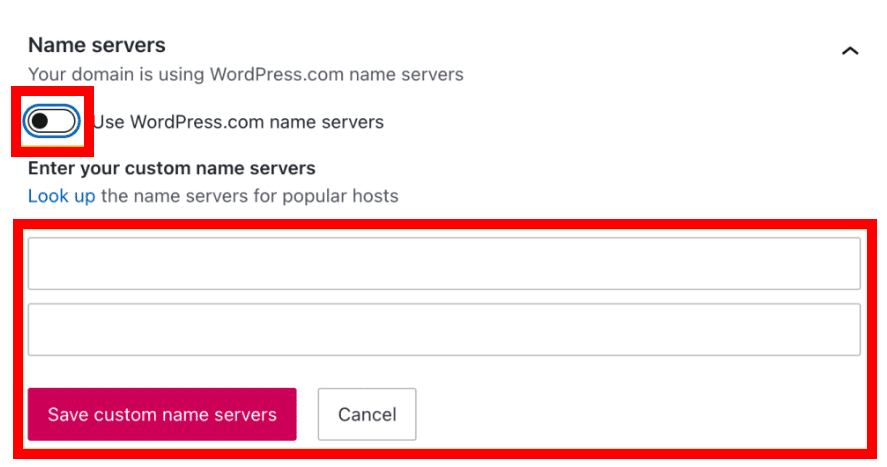
- – If you’re using WordPress’s name servers, you’ll need to toggle off the “Use WordPress.com name servers” option.
- – Enter the name server names provided by Cloudflare in Step 1.
- – Click the Save custom name servers button
Step 3: Boost Security Through Cloudflare
Once you change your name server, it may take 24 hours or more for this change to resolve. After this, all your internet traffic will route through Cloudflare’s servers first. They can help block nefarious traffic automatically. Cloudflare will be more likely to catch these attacks and automatically stop credit card thieves and hackers from accessing your site.
There’s a few more security settings in Cloudflare that you can use to combat carding.
First, change your security level through Cloudflare. Log in to your Cloudflare account and go to Security, then Settings. Then, select Create a Configuration Rule.
Security > Settings

You’ll then be able to add an extra security rule for your Cloudflare name server to follow. Name your rule anything you like. Then, in the Value box, enter the relative URL of your e-commerce or payment page, which is experiencing the credit card testing problems. This is the part of your URL that comes after the .com, .net, .biz, or .org in your URL. It’s probably something like /send-payment or /make-a-purchase or /checkout, or something similar.

Then set the Security Level to I’m Under Attack. This rule tells Cloudflare to be extra cautious about the traffic coming to this page. Many users will be required to fill out a CAPTCHA prompt before they start the checkout process. CAPTCHA prompts are highly effective in weeding out bots. This means that hackers won’t be able to use their bots to repeatedly enter credit card numbers for testing. Theoretically, they could enter these numbers one at a time by themselves. However, this is time-consuming, and hackers will be much more likely to simply move on and use their credit card testing bots on a site with less protection.

Some users won’t receive a CAPTCHA prompt before making a purchase. This happens if Cloudflare has already determined that the user is not a bot or a hacker based on their other activities browsing the site. If you or your users don’t see a CAPTCHA prompt, don’t worry! Cloudflare is still working and guarding your payments page against hackers.
Extra Security: Bot Fight Mode
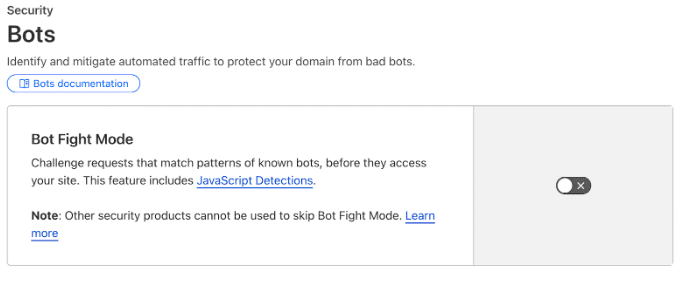
If you’re actively being targeted and you’ve noticed a lot of fraudulent purchases, you can boost your security even more. You can enable Bot Fight Mode through Cloudflare to stop bots and scripts in their tracks. To do this, go to the Security section of your Cloudflare account, and scroll to the Bots section. Toggle on the button on the right. This will help you fight all kinds of bots, not just those used for credit card testing.
Additional Security Measures
There are other ways to fight credit card testing on your site, even if you don’t have a WordPress site.
- – WooCommerce: If you’re using WooCommerce, take a look at their Anti-Fraud Plugin.
- – Google reCAPTCHA: Many form submission plugins which are required for users to enter their payment details support reCAPTCHA, which is Google’s version of CAPTCHA. Implementing reCAPTCHA on your form plugin will help to stop bots.
- – Wordfence: Though Wordfence isn’t specifically designed to stop credit card testing, it is designed to detect bots and stop unusual behavior on websites. This plugin may also be effective in stopping carding.
Conclusion: Don’t Panic—You Can Fix It
If you notice a lot of fraudulent credit card charges coming through your ecommerce website, it can be scary. Don’t panic. Web masters have been dealing with this issue for some time and have developed relatively simple tools to stop it. By using a Web Application Firewall like Cloudflare, you can stop credit card testing on your WordPress site. If the issues persist, there are other options. Work through these steps carefully and you can guard your site against bad actors, and continue enjoying consistent online sales.