
How to Add Facebook Comments to My Website
*This is an updated version of our previous tutorial on adding Facebook comments to your website.*
Facebook’s social plugin, Comments, allows you to quickly add comments to your website. Users not only have access to basic commenting abilities, they also have the option to cross-post their comments directly into their Facebook Timeline. Comment Administrators also gain access to a deeper stat-tracking system through Facebook Insights. While in the past the Comments box served merely as a static addition, it now has the capacity to provide direct communication between a website, a Facebook user, and all of his or her friends.
How to add the Facebook Comments Box to your website
1.) Create a Facebook App (Relax, it’s not that scary.)
- Visit http://developers.facebook.com
- Login with your Facebook account
- Select Apps from the navigation menu and choose Create a New App
- Fill in the Display Name and select a category that matches your app
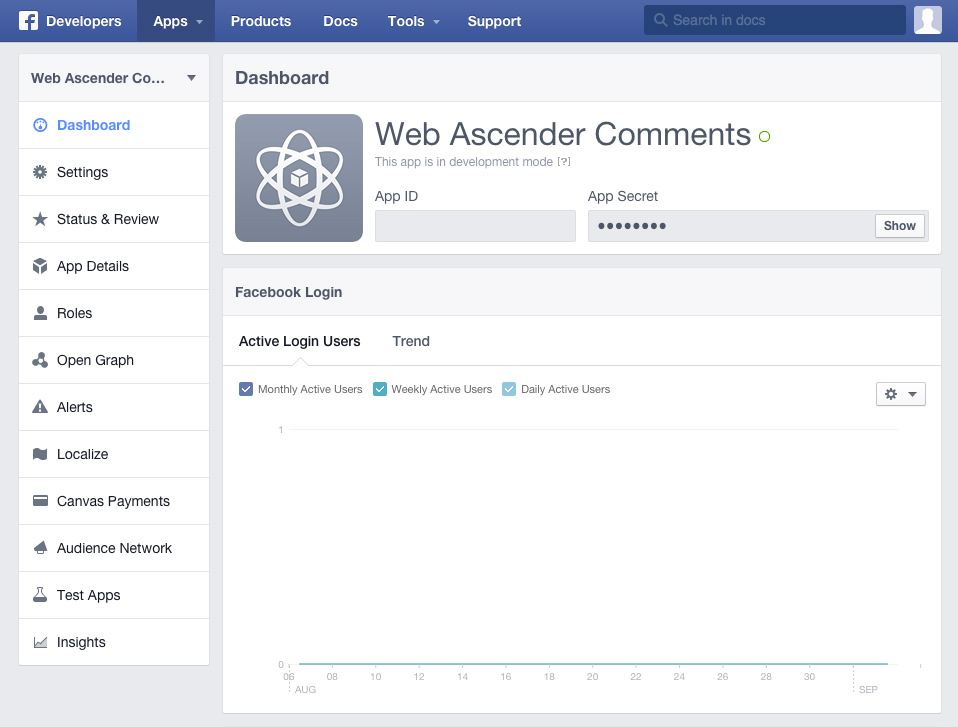
- Click Create App – You’ll now be taken to your App’s Dashboard page
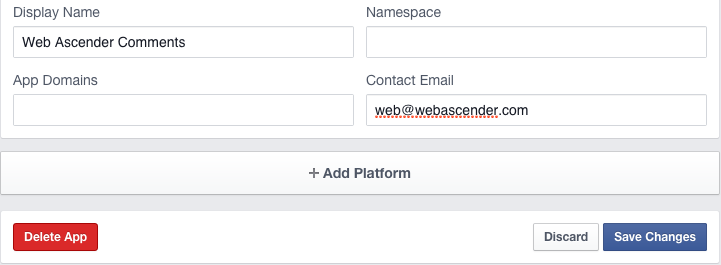
- Click the Settings link and add a Contact Email address and App Domain (your site URL) – Save your changes
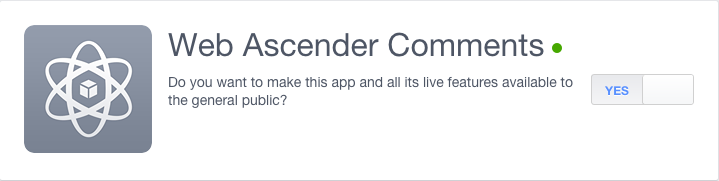
- Click the Status & Review link and toggle the switch to make the app public.
- Now, visit the plugin page https://developers.facebook.com/docs/plugins/comments
2.) Create your Comments box (you’re almost there!)
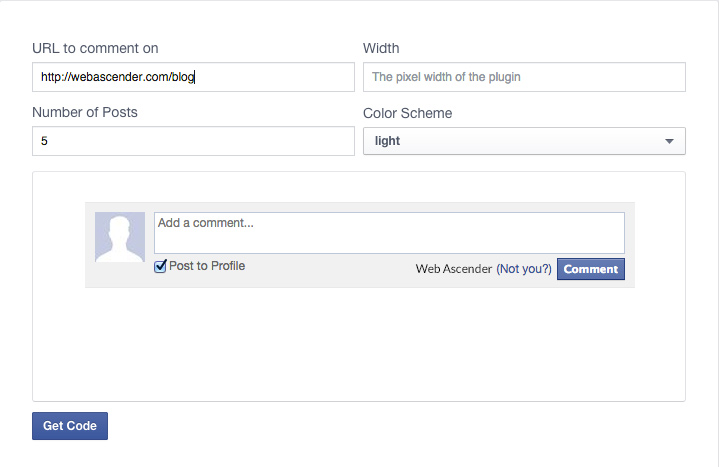
Facebook offers a simple and easy to use Comments code generator which looks something like this:
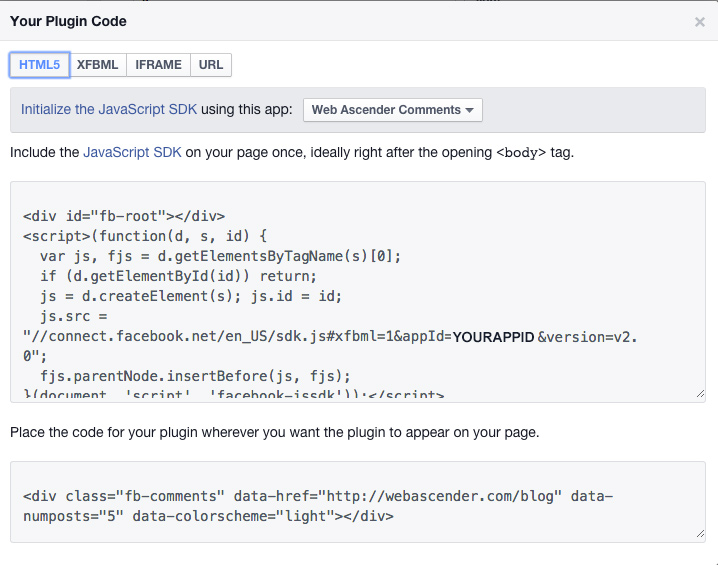
- Simply insert the URL you want Facebook to link to, the number of posts you would like displayed, and the width you want your Comments box to be – Click Get Code
- Add the Javascript SDK (first box) after the opening <body> tag – Add this once to a page
- Add the Facebook Comments plugin (second box) to your page. This is where the comment box will be displayed.
Dynamic Comments (WordPress example):
If you would like comments to appear automatically with a unique url, change the data-href value to be your permalink url. For WordPress, it would look like this: data-href=“<?php the_permalink(); ?>”
Attributes And Moderation
Data Attributes
data-colorscheme : “light” or “dark” theme
data-href : the URL associated with the Comments box.
data-numposts : the number of comments to show by default
data-order-by : “social”, “reverse_time”, or “time”
data-width – the width of the plugin in pixels. For a fluid width, use 100%
Moderation
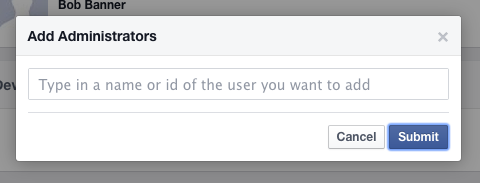
If you need multiple moderators for your newly added Comment box, visit your App’s Role page and add their Facebook ID as an Administrator.
Put this to work
Questions about applying this to your business? A 30-minute discovery call is the fastest way to find out.
Reach Out →or call 517-455-7837