
 By
I enjoy working with WordPress for a variety reasons and one of those reasons is it’s implementation of shortcodes. Shortcodes are nothing new to WordPress (they were introduced back in version 2.5), but I constantly find new ways to incorporate them into my sites.
“Shortcodes are magical…”
By default, WordPress provides 6 shortcodes out of the box that you can use.
- [audio]
- [caption]
- [gallery]
- [playlist]
- [video]
If you’d like to learn more about what these shortcodes do, take a look at this codex article.
Shortcode Design
Truth be told, I don’t really use the default WordPress shortcodes. However, many of the plugins I use provide their own shortcodes. Did you know that you too can create your own custom shortcodes?
Typically, they come in 2 different designs
- Non-enclosed shortcode – [shortcode]
- Enclosed shortcode – [shortcode] The content [/shortcode]
Create your very own custom WordPress shortcode
Let’s get started creating our first custom WordPress shortcode. For this shortcode we will be creating a simple text result.
First, let’s write our callback function. This function must be included in your functions.php file.
function text_shortcode(){
    return 'This is a simple text shortcode. Enjoy!';
}
Pretty simple so far? Now, let’s add our code comment and register the shortcode.
// Function to add text shortcode to posts and pages
function text_shortcode(){
    return 'This is a simple text shortcode. Enjoy!';
}

add_shortcode('text', 'text_shortcode');
We can now use the shortcode [text] to return our content.
Let’s see what this looks like.

This is a pretty cool example of what you can do with the basics. This is perfect for loading simple snippets of code.
Advanced Custom WordPress Shortcode
Now, let’s look at an advanced shortcode. This example is an enclosed shortcode with custom attributes. The end result is a simple button. Let’s look at the code.
//Displays custom button shortcode
function button_shortcode( $atts, $content = null ) {
    //set default attributes and values
    $values = shortcode_atts( array(
        'url'   	=> '#',
        'target'	=> '_self',
    ), $atts );

    return '<a href="'. esc_attr($values['url']) .'"  target="'. esc_attr($values['target']) .'" class="btn btn-green">'. $content .'</a>';

}
add_shortcode( 'button', 'button_shortcode' );
In this example, we create the callback and inside of this callback we have a set of defaults specified in an array. If, however, the shortcode user decides to input their own values, they can choose to at that time and the results will be displayed accordingly.
Now that we’ve created our shortcode parameters, let’s build the shortcode.
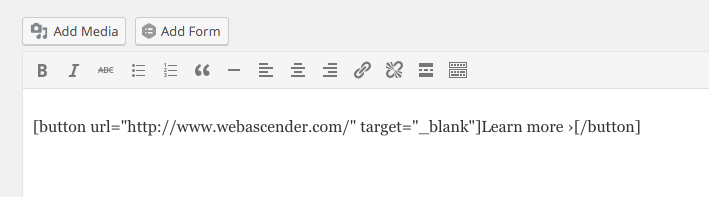
[button url="/" target="_blank"]]Learn more ›[[/button]
For this example, we are creating a new button to an external website which will open in a new tab. Let’s add this shortcode to the page.
Now let’s have a look at the result.

Hopefully, you can see the potential for custom shortcodes in your own site. Have an idea for a custom shortcode? Let me know in the comments.
Happy WordPressing!
Put this to work
Questions about applying this to your business? A 30-minute discovery call is the fastest way to find out.
Reach Out →or call 517-455-7837